“This post contains affiliate links. If you click and make a purchase we may earn a small commission at no extra cost to you. We only recommend tools we genuinely believe in.”
How to Use ChatGPT for Lesson Planning — 7 Steps + 20 Prompts
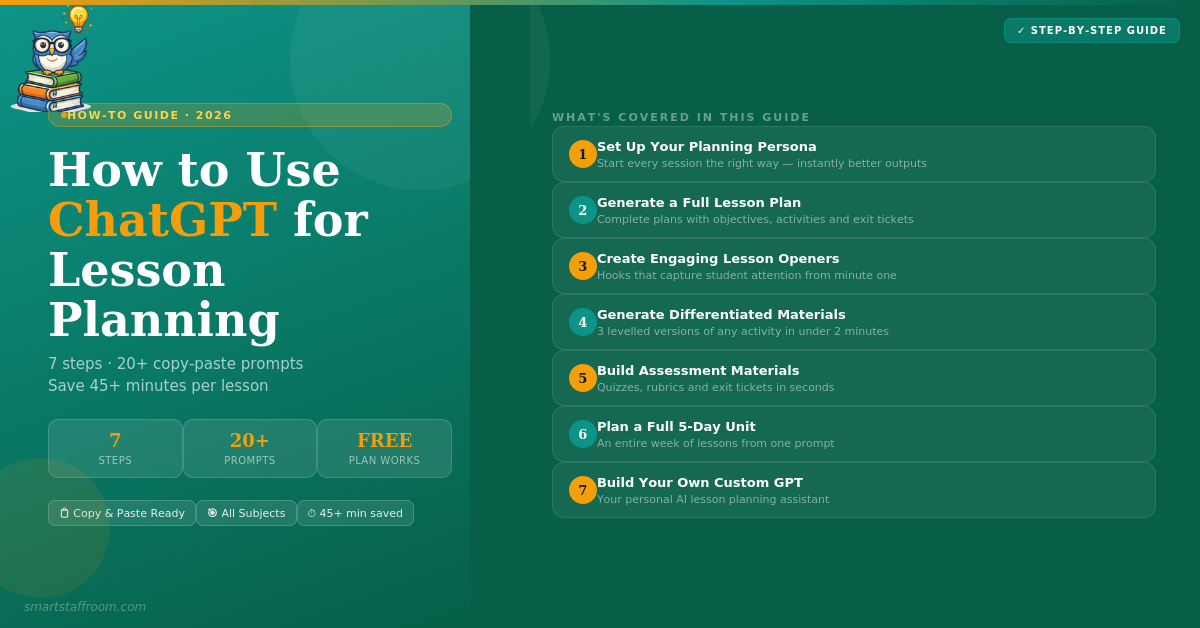
ChatGPT can cut your lesson planning time by 45 minutes or more per lesson — but only if you know how to use it correctly. This step-by-step guide shows you exactly how, with copy-paste prompts for every stage of the process.
Four in ten teachers now report using ChatGPT at least once a week. But most are only scratching the surface of what it can do for lesson planning. The difference between a teacher who saves 30 seconds and a teacher who saves 3 hours comes down to one thing — knowing how to prompt it well.
This guide walks you through the entire lesson planning process using ChatGPT — from setting up your first prompt to generating a complete unit plan with differentiation, assessments, and supporting materials. Every prompt is ready to copy and paste.
Before You Start — The Golden Rule
The single most important thing to understand about using ChatGPT for lesson planning is this: the quality of your output is determined entirely by the quality of your input. A vague prompt produces a generic, unusable lesson plan. A specific, detailed prompt produces something genuinely classroom-ready.
Before writing any prompt, always have these details ready:
🎯 What to include
Grade level, subject, specific topic, lesson duration, learning objectives, curriculum standard if applicable, and any student context like mixed ability or ESL learners.
🔄 How to iterate
If the first output is not quite right — do not start again. Ask ChatGPT to revise: “Make this more engaging” or “Simplify for struggling readers” works immediately.
👤 Set a persona
Start every planning session with “You are an experienced [subject] teacher for [grade level].” This one line dramatically improves the tone and relevance of outputs.
✏️ Always review
ChatGPT produces a strong first draft — not a finished product. Plan for 5–10 minutes of personalisation before using any output with students.
The first message in any ChatGPT conversation sets the context for everything that follows. Starting with a clear persona dramatically improves the relevance, tone, and educational accuracy of every output in that session.
Once your persona is set, use this prompt to generate a complete lesson plan. The more detail you provide here — topic, duration, objectives, any specific requirements — the better the output will be.
Please include:
– Learning objectives (3 clear, measurable objectives)
– Warm-up activity (5 minutes)
– Main teaching activity with step-by-step instructions
– Guided practice activity
– Independent practice task
– Exit ticket to check understanding
– Materials needed
– Differentiation suggestions for students who need support and students who need extension
The lesson should align to [curriculum standard or learning goal]. My class has [any specific context — e.g. mixed ability, several EAL learners, etc.].
Refining the Output
If the first output is not quite right, use these follow-up prompts in the same conversation:
“Simplify the main activity — my students struggle with extended reading tasks.”
“The lesson feels too long. Cut it down to [X] minutes while keeping the key learning.”
“Add a real-world connection to [something students care about — sport, social media, music].”
“Rewrite the objectives using Bloom’s Taxonomy action verbs at the analysis level.”
Teachers consistently report that the lesson opener is the hardest part to write from scratch — it needs to be surprising, relevant, and short. ChatGPT is excellent at generating creative hooks because it can draw connections across a huge range of topics and cultural references.
– Take no more than 5 minutes
– Immediately capture student attention
– Connect to something [age range] year olds actually care about in 2026
– Lead naturally into the main lesson content
Include at least one that uses a surprising fact, one that uses a question with no obvious answer, and one that uses a short video or image prompt.
Differentiation is one of the most time-consuming parts of lesson planning. ChatGPT can generate three levelled versions of any activity or reading in seconds — something that previously took 30–45 minutes of manual adaptation.
Activity: [describe the activity]
Version 1 — Foundation: For students working below grade level. Simplify language, add more scaffolding, break into smaller steps, include sentence starters.
Version 2 — Core: For students working at grade level. This is the standard version.
Version 3 — Extension: For students working above grade level. Add challenge, require deeper analysis, remove scaffolding, include an open-ended element.
Keep the core learning objective the same across all three versions.
Original text: [paste your text here]
Once your lesson plan is drafted, generating the accompanying assessment materials is where ChatGPT really saves time. A marking rubric that takes 20 minutes to write from scratch takes 20 seconds with the right prompt.
– 5 multiple choice questions (vary difficulty from easy to challenging)
– 3 short answer questions
– 2 extended response questions
Include a complete answer key. Questions should assess understanding of: [list key concepts from your lesson].
– Question 1: Tests basic recall of the key concept
– Question 2: Asks students to apply what they learned
– Question 3: Asks students to reflect — what was most challenging and why
Keep each question to one sentence. They should take no more than 3 minutes to answer.
Unit planning used to take a full afternoon. With ChatGPT you can generate a structured 5-day unit outline in under 2 minutes — giving you a solid framework to build from rather than starting with a blank page.
For each day include:
– A clear learning focus for the day
– One main activity
– One formative assessment or check for understanding
– Homework task (10–15 minutes)
Day 5 should include a summative assessment. The unit should build progressively — each day should build on the previous day’s learning. Align to [curriculum standard if applicable].
If you use ChatGPT regularly for lesson planning, one of the most powerful things you can do is create a Custom GPT — your own personal AI assistant trained on your specific teaching context. This is available on ChatGPT’s free plan and takes about 10 minutes to set up.
How to Create Your Lesson Planning Custom GPT
Go to chatgpt.com → Explore GPTs → Create. In the setup, describe your teaching context in detail — your grade level, subject, curriculum, typical class composition, your school’s values, and any recurring planning needs. Save it and use it as your starting point for every planning session.
Once set up, you never need to re-establish context at the start of every conversation. Your Custom GPT already knows everything about your classroom — every conversation starts from that foundation.
Subject: [your subject]
Grade Level: [your grade]
Curriculum: [your curriculum/country]
Class Profile: [describe your typical class — ability range, any EAL learners, class size]
Lesson Duration: [typical lesson length]
School Values: [e.g. inclusive, inquiry-based, etc.]
When I ask you to plan a lesson, always include: learning objectives, a hook, main activity, guided practice, independent task, exit ticket, and differentiation. Always use language appropriate for [grade level] students. Always be practical and classroom-ready.
Common Mistakes to Avoid
❌ Vague prompts
“Make a lesson plan on photosynthesis” gives generic results. Always specify grade level, duration, objectives, and student context.
❌ Accepting the first output
The first output is a draft. Always read it and ask for at least one revision before using it with students.
❌ No student data in prompts
Never paste student names or personal information into ChatGPT. Always anonymise or remove identifying details.
❌ Starting a new chat every time
Use the same conversation for one planning session. ChatGPT remembers everything you have already established — do not throw that context away.
ChatGPT vs Dedicated Lesson Planning Tools
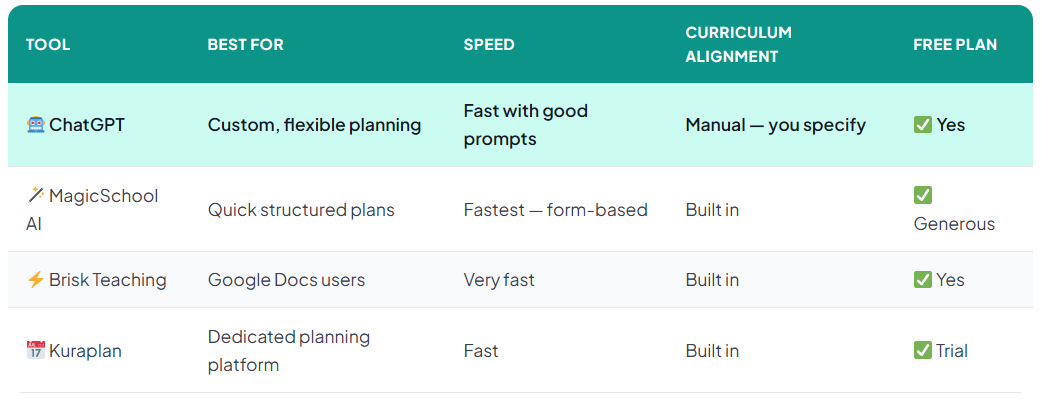
ChatGPT is the most flexible lesson planning AI available — but it is not always the fastest for simple tasks. Here is how it compares to dedicated tools:
Frequently Asked Questions
Start Planning Your Next Lesson Right Now 🤖
Open ChatGPT, copy the persona prompt from Step 1, and run it before your next planning session. You will see the difference immediately.
Open ChatGPT Free → See All 53 Teacher Prompts🦉 Join 1,000+ Educators
Weekly AI tool reviews · Free resources · No spam
By subscribing you agree to receive weekly emails from Smart Staff Room. Unsubscribe anytime.
*All prompts tested with ChatGPT’s free plan (GPT-4o). Last updated: March 2026.